
Rotate Joint
Overview
Rotate Joint rotates a selected assembly joint 180 degrees by inverting the joint’s alignment. This is helpful for quickly reversing orientation of parts/subassemblies connected by joints (for example: duct fittings or mechanical linkages) without opening the Edit Joint dialog and toggling alignment manually.
If constraints are violated, Inventor may show “Sick” joints after the change.
How It Works
- Select a component occurrence (to expose/select its joints).
- Select the joint to rotate.
- The command inverts alignment of the selected joint, rotating it 180 degrees.
- Connected components may rotate depending on the joint configuration.
Usage Instructions
- Open the assembly containing the joint you want to rotate.
- Click Rotate Joint in the Placement panel.
- Select the component, then select the joint to rotate.
- Review the result (and any affected connected components).
Troubleshooting
- Joint does not rotate: Ensure the selected component has joints and that you selected a valid joint.
- “Sick” joints appear: The rotation is blocked by constraints—review and adjust constraints as needed.
- Unexpected components moved: Connected components can rotate depending on joint graph; verify which joint you selected.
Examples
On the Inventor Edit Joint dialog box, this is equivalent to picking the Invert Alignment toggle button under "Align" - highlighted above.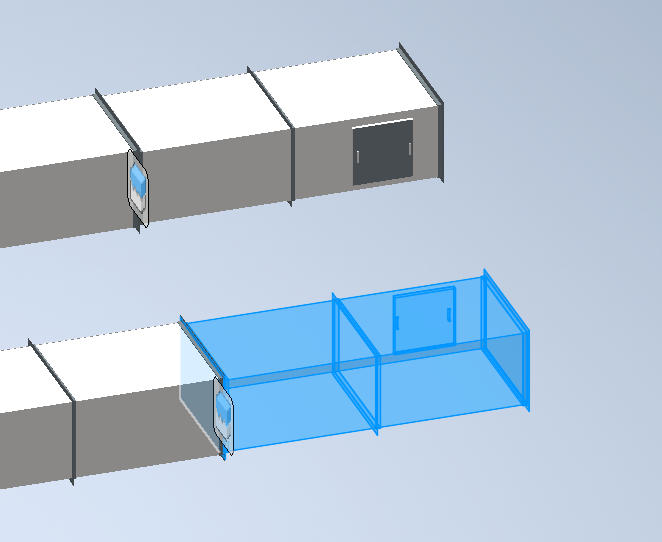
In this snip, the duct with the clean out door is selected and the left joint is picked. The result is the joint (and duct) is rotated 180 degrees and the clean out door is now on the back side of the duct. Note the adjacent duct fitting to the right with test ports is also rotated because its joint with the rotated fitting is not modified.
